
Raspberry Pi IoT Dashboard: From Sensor to Screen in 30 Minutes
By LoopString Team
You have a Raspberry Pi. You have a sensor. You want to see live data on a dashboard from anywhere in the world. Here is how to make that happen in 30 minutes.
This tutorial walks through connecting a BME280 temperature, humidity, and pressure sensor to a Raspberry Pi, wiring it to a cloud dashboard using LoopString, and having live data streaming to your browser — all without writing a single line of code.
What You Will Build
By the end of this tutorial, you will have:
- A BME280 sensor connected to your Raspberry Pi via I2C
- A Node-RED flow that reads the sensor every 10 seconds
- A cloud dashboard showing live temperature, humidity, and barometric pressure
- Sparkline trend charts for each measurement
- Optional alarm thresholds that notify you when readings go out of range
What You Need
Hardware:
- Raspberry Pi 3B+, 4, or 5
- BME280 sensor breakout board (available for under $5)
- 4 jumper wires (female-to-female)
- MicroSD card (16GB+) with LoopString OS flashed
- Power supply for your Pi
Software:
- A free LoopString account
- A modern web browser
Total cost: under $50 if you already have a Pi.
Step 1: Wire the BME280 Sensor (5 minutes)
The BME280 communicates over I2C, which only needs four wires:
- VIN to Pi 3.3V (pin 1)
- GND to Pi GND (pin 6)
- SDA to Pi GPIO 2 / SDA (pin 3)
- SCL to Pi GPIO 3 / SCL (pin 5)
Double-check your connections. The BME280 is a 3.3V sensor, so connecting to 5V can damage it.
Verify the Connection
SSH into your Pi and run:
i2cdetect -y 1You should see address 0x76 or 0x77 in the grid. If you see nothing, check your wiring and make sure I2C is enabled (sudo raspi-config > Interface Options > I2C > Enable).
Step 2: Create Your LoopString Account (2 minutes)
- Go to loopstring.io and click Get Started
- Sign up with email or Google
- You are now on the free tier: 1 device, 8 sensor slots — more than enough for this project
Step 3: Add Your Raspberry Pi (3 minutes)
- Click + Add Device in the dashboard
- Name it something descriptive (e.g., "Office Pi")
- Copy the 6-character claim token
- On your Pi, enter the token in the LoopString setup wizard
- Your Pi appears in the dashboard within seconds
If your Pi is running LoopString OS, the setup wizard runs automatically on first boot. If you need to flash the OS, see our Pi Setup Guide.
Step 4: Configure the Sensor in the Configurator (5 minutes)
The Configurator is LoopString's visual editor for building automation flows.
- Open Configurator from the sidebar
- Select your Pi from the device dropdown
- Click Add Room and name it (e.g., "Office")
- Click Add Part inside the room
- Search for BME280 in the parts library
- Select it — LoopString auto-detects the I2C address
The BME280 is a multi-measurement sensor, so adding it gives you three signals automatically:
- Temperature
- Relative humidity
- Barometric pressure
The default polling interval is 10 seconds, which works well for environmental monitoring. You can adjust this later.
Step 5: Deploy to Your Pi (1 minute)
Click the Deploy button in the Configurator. Here is what happens behind the scenes:
- LoopString generates a Node-RED flow from your configuration
- The flow JSON is deployed to your Pi over the edge API (POST /api/deploy over Tailscale)
- Node-RED on the Pi loads and starts the flow
- The deploy status updates live in your browser
Deployment takes about 5 seconds. You will see the status change from "Deploying" to "Active".
Step 6: Watch Your Dashboard Come Alive (0 minutes)
Switch to the Dashboard tab. Within 10 seconds (one polling interval), you will see:
- Temperature card showing the current reading with a sparkline trend
- Humidity card with percentage and trend
- Pressure card with barometric reading and trend
All three update in real time. Open the dashboard on your phone and your laptop — both show the same live data.
Going Further
Set Up Alarm Thresholds
Click any sensor card to configure alerts:
- Warning at 28C — yellow border, in-app notification
- Critical at 35C — red border, email notification
- Hysteresis of 2 degrees — prevents alert flapping when temperature hovers near the threshold
Add Unit Conversion
Prefer Fahrenheit? Go to Account Settings > Units and select your preferred temperature unit. The dashboard, analytics, and alarm thresholds all convert automatically.
View Historical Data
Open the Analytics section to see your sensor history plotted over time. You can overlay all three BME280 signals on a single chart, zoom into specific time ranges, and track trends over hours or days.
Add More Sensors
The free tier gives you 8 sensor slots. The BME280 uses 3 (temperature, humidity, pressure), leaving 5 more. Some ideas:
- DS18B20 waterproof temperature probe for a different location
- MH-Z19 CO2 sensor for air quality monitoring
- CPU temperature as a system health signal (no extra hardware needed)
Add Actuator Control
Connect a relay to control a fan, heater, or light:
- Wire a relay module to a GPIO pin
- Add a GPIO Relay part in the Configurator
- Deploy
- Toggle the relay from your dashboard — from anywhere
What Just Happened?
In 30 minutes, you built a complete IoT monitoring system:
- Edge computing — Node-RED on the Pi handles sensor reading locally
- Edge streaming — the browser reads live data straight from the Pi over EdgeTransport (WebSocket over Tailscale)
- Live dashboard — React-based UI with real-time subscriptions
- No code — The Configurator generated everything
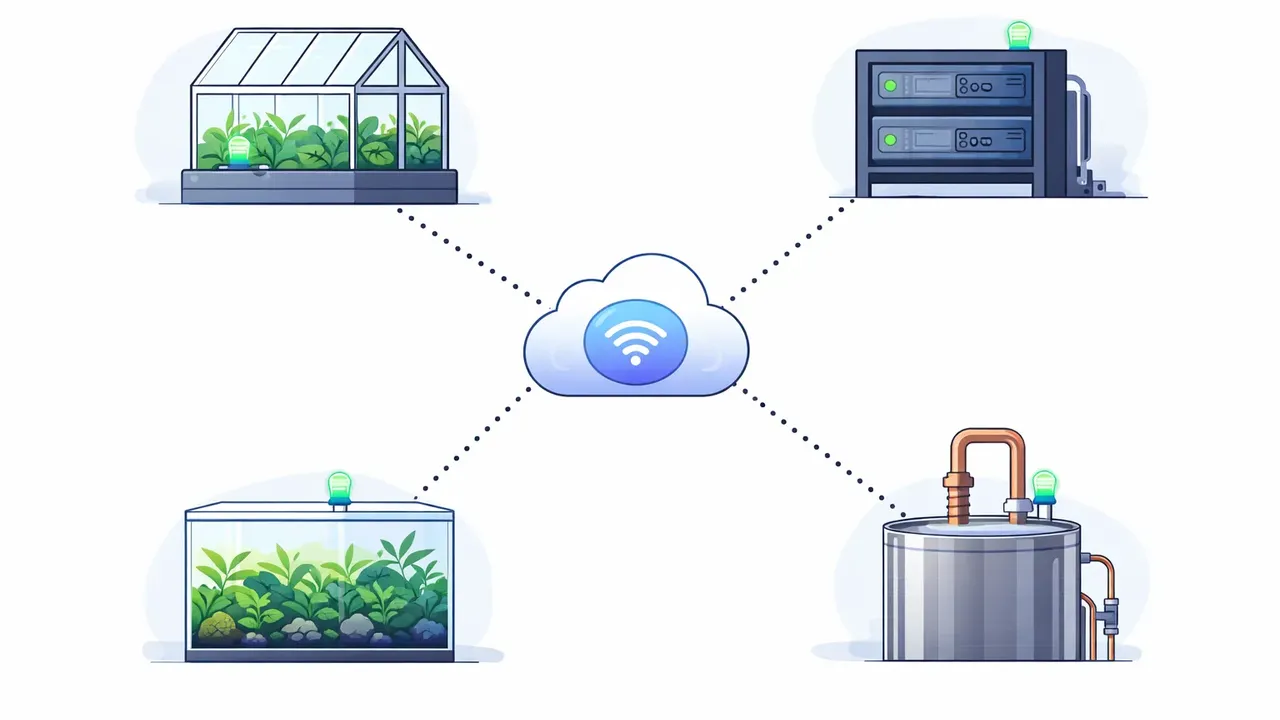
This is the same architecture used for industrial monitoring, automated grow rooms, and smart home projects. The only difference is scale.
Ready to Build More?
Create your free LoopString account and start building. The free tier includes 1 device, 8 sensor slots, and full access to the Configurator. No credit card required.
When you need more devices or sensor slots, upgrade to Starter ($7/mo) for 2 devices and 16 slots, or explore our full pricing options.
Learn More
- Pi Setup Guide — complete Raspberry Pi setup walkthrough
- Configurator Overview — visual flow builder for IoT systems
- Dashboard Overview — understand your monitoring dashboard
- Monitoring a Small Brewery — real-world multi-Pi deployment
Frequently asked questions
The BME280 uses I2C and needs just four wires: VIN to the Pi's 3.3V (pin 1), GND to GND (pin 6), SDA to GPIO 2 / SDA (pin 3), and SCL to GPIO 3 / SCL (pin 5). It is a 3.3V sensor, so connecting VIN to 5V can damage it. You can confirm the wiring by running i2cdetect -y 1 and looking for address 0x76 or 0x77.